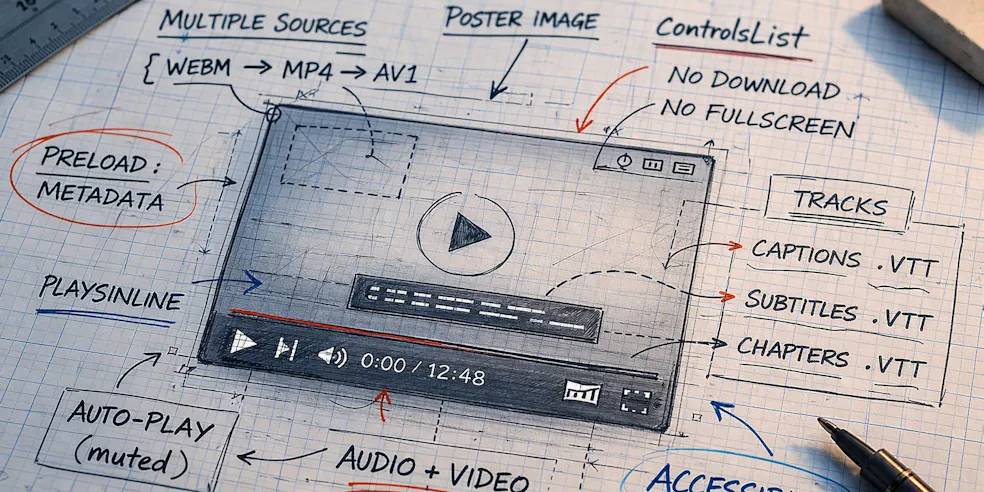
If you’ve read the WeAreDevelopers Magazine before, you’ll know we’re vocal supporters of the web platform, and of sharing the power of native HTML elements. This time, we’re taking a closer look at media elements like <video> and <audio>, and how to make the most of them.
Multiple Sources
Just as we do with fonts, it’s good to give the browser fallback options when it comes to serving media files. So, rather than pointing to a single file, you can stack <source> elements and the browser will use the first format it supports:
<video controls>
  <source src="video.webm" type="video/webm">
  <source src="video.mp4"  type="video/mp4">
</video>
By including the type attribute, browsers can skip formats it can’t play, without wasting time and data streaming the file first.
As for audio, it works exactly the same way, though of course the expected formats are different:
<audio controls>
  <source src="audio.ogg" type="audio/ogg">
  <source src="audio.mp3" type="audio/mpeg">
</audio>
The <audio> Element
The <audio> element is very simple, and shares most of its attributes with <video>, with its most basic use looking a little like this:
<audio controls src="track.mp3"></audio>
But audio becomes more useful when you add in a few attributes. Of course loop and autoplay work as you’d expect (though autoplay is blocked by most browsers unless muted is also set), and preload let’s you decide whether you want the source files fetched on load or not. We’d advise using preload="none" wherever possible, to save unnecessarily loading files.
The audio element is great for notification sounds, interactive feedback, ambient audio, and a common pattern is a hidden audio element triggered by user interaction:
<audio id="chime" src="chime.mp3" preload="auto"></audio>
We’ve seen this over-engineered in all kinds of ways, whereas this native element keeps everything contains and JavaScript-free.
Accessibility
The <track> element attaches a .vtt file to your media, handling captions, subtitles, and chapter navigation without any third-party tooling.
<video controls>
  <source src="video.mp4" type="video/mp4">
  <track kind="captions"  src="captions-en.vtt" srclang="en" label="English" default>
  <track kind="subtitles" src="subs-fr.vtt"      srclang="fr" label="French">
  <track kind="chapters"  src="chapters.vtt"     srclang="en" label="Chapters">
</video>
You can see above that we’ve used three different kinds of kind attributes, and it’s worth paying attention to why. So, captions include non-speech sounds like [door slams] and is intended for accessibility, subtitles is a straight transcript, intended for users who understand the language, and chapters creates a navigable menu inside the player automatically. Again, all of this without any JavaScript, and all native.
One gotcha to look out for is that the .vtt file must be served from the same origin as the page, or with the correct CORS headers, and will silently fail if not.
Controlling the UI
One common reason that some devs will reach for a framework, pre-made component or bloated UI library is to be able to customise elements beyond what the native ones allow.
Well, the video elemement has a good amount of attributres built in to do just this. The controlsList attribute lets you strip specific controls from the native player without replacing it entirely:
<video controls controlsList="nodownload nofullscreen noremoteplayback">
  <source src="demo.mp4" type="video/mp4">
</video>
The three available values — nodownload, nofullscreen, and noremoteplayback, can be combined in any combination. It’s particularly useful for dashboards or internal tools where a minimal, non-downloadable player is preferable to a full custom build.
It is worth saying this is a Chromium-only feature, and Firefox ignores it, so it’s far from perfect.
Other Attributes
Beyond controls and src, there are a handful of attributes that meaningfully change how media loads and behaves.
You can set a thumbnail image before playback starts using the poster attribute, passing a path to your image as a string, which goes a long way toward making an embedded video feel intentional rather than like a grey box.
Also, playsinline is essential for mobile, because without it iOS Safari forces video into fullscreen when played.
Putting it all together, a production-ready embed often looks something like this:
<video
  controls
  controlsList="nodownload"
  preload="metadata"
  poster="thumbnail.jpg"
  playsinline>
  <source src="video.webm" type="video/webm">
  <source src="video.mp4"  type="video/mp4">
  <track kind="captions" src="captions.vtt" srclang="en" label="English" default>
</video>
Isn’t that great? No JavaScript, no framework, no libraries, and it even has fallback-files.
We hope you found this article useful, and if you have any tips and tricks you’d like to share with our audience then get in touch with us on socials.